Floating Licenses
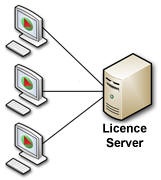 A floating (roaming) license
allows multiple users to share use of an application, whereas a normal
license is locked down to a single computer.
A floating (roaming) license
allows multiple users to share use of an application, whereas a normal
license is locked down to a single computer.
One floating license is needed for each concurrent user. For example, with one floating license, any number of users can have the software installed, but only one can use it at at a time - the others must wait for them to finish using it.
With two floating licenses, again, any number of users can have the software installed, but only two can use it at the same time - the others must wait. The waiting users see a warning message. When one user finishes using the software, another user can begin.
Customers do NOT need to run a license server. Software installation is purely a client install. If you run a corporate firewall, DataMystic software needs to connect to www.datamystic.com periodically to confirm license entitlements.
The software needs to connect to https://www.datamystic.com/license/ periodically. This will change to https://license.datamystic.com/license/ in future. The user agent is ‘DataMystic License Client’.
Proxy Settings
If your computer needs to use proxy settings to connect to the internet, please use the command:
netsh winhttp set proxy 52.86.192.61:22
to configure the default proxy behavior, as TextPipe does not use Internet Explorer's proxy settings.
If this does not work, look for a file called
C:\Users\[username]\AppData\Local\DataMystic\[application name e.g. TextPipe]\application.dataIn this file, you can set the PropValue appropriately for your proxy settings.
  <9>
    <PropName>InternetProxy</PropName>
    <PropIndex>9</PropIndex>
    <ValueType>1</ValueType>
    <PropValue>myinternalproxy.mydomain.com</PropValue>
  </9>
  <10>
    <PropName>InternetProxyPort</PropName>
    <PropIndex>10</PropIndex>
    <ValueType>2</ValueType>
    <PropValue>22</PropValue>
  </10>
  <11>
    <PropName>InternetProxyUser</PropName>
    <PropIndex>11</PropIndex>
    <ValueType>1</ValueType>
    <PropValue/>
  </11>
  <12>
    <PropName>InternetProxyPassword</PropName>
    <PropIndex>12</PropIndex>
    <ValueType>1</ValueType>
    <PropValue/>
  </12>
See also the information on unattended installations. Note - this is quite different to the File Server edition also offered, which is intended to allow the software to run directly on the server, eliminating network latency for very large numbers of files (50,000+).
Note
You need to purchase one floating license for each concurrent user. The software is installed on one or more client computers. When the software starts for the first time on a computer, it will ask for the purchase information (name, key, receipt number).
Once it has this, it will then ask the DataMystic license server to see if there is a free license that no-one else is using. If not, the software will exit. But if so, the software will lease the license for a period of time. During this time, no-one else can make use of the license. This license is released when the software exits.