
Software runs successfully on Windows 98, 2000, XP, 2003, Vista &
Windows 7 and 8 x32/x64
Support Section
 We
are here to provide technical support to our customers.
We
are here to provide technical support to our customers.
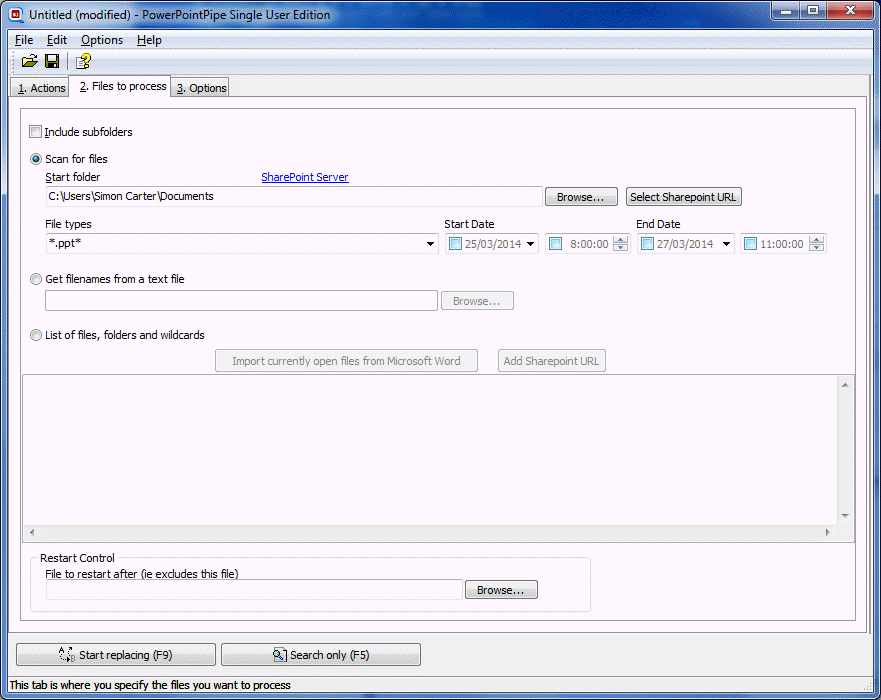
Include subfolders
When checked, the Include Subfolders box tells PowerPointPipe to search all subfolders of the Start folder for presentations to process. Clear this check box if you don't want to search subfolders of the Start folder.
When the file list is used, PowerPointPipe will scan all subfolders for matching files.
The include subfolders box applies to all the types of file search.
Scan for files
Note: You can drag and drop files or folders to process directly from Windows Explorer to PowerPointPipe and they will be added to the List of Files. If you drag and drop a settings file (.PPP) the new settings will be loaded.
Start folder
The start folder is where PowerPointPipe starts searching for presentations to process. You can browse to a new folder by clicking on the [Browse] button on the right hand side. To open the folder, double click the field.
To make changes to a SharePoint site, use the [Select SharePoint URL] button.
File types
The type of presentations to find. You can separate multiple types with a semi-colon, e.g. *.ppt*;*.sld*;*.odp
Start date
You can specify an optional start date/time, so that only files modified after this date will be examined.
End date
You can specify an optional end date/time, so that only files modified before this date will be examined.
Note: For Word documents (*.doc etc), use our WordPipe application. Note: For Excel documents (*.xls etc), use our ExcelPipe application. For Text documents (txt, html, xml, csv, tab, prn etc), use our TextPipe Pro application, for far greater speed.
Get filenames from a text file
Use this facility to load a list of files from a text file. Filenames should be one per line, and filespecs like c:\*.ppt;*.txt can be used.
List of files
You can paste a list of filenames (and wildcards) directly into the multi-line edit box.
If your previous run had files with errors, you can copy the list of filenames from the Errors tab and paste the files into this box for reprocessing.
Import currently open files from Microsoft PowerPoint
If you are working on files inside Microsoft PowerPoint, you can easily transfer them to PowerPointPipe with this button.
Add SharePoint URL
Click this button to add a URL pointing to a SharePoint site.
Restart control
File to restart from
If you need to restart a job to recover from an error, specify the first filename to process in this box. All files prior to this file will be skipped.